

Navigating the Platform
The Home Page
The Raumsonde home page is divided into two main columns with a header bar across the top. The page header displays the Raumsonde Berlin logo on the left and three navigation buttons on the right: Support, Login, and Language. These are described in more detail in Section Header Navigation
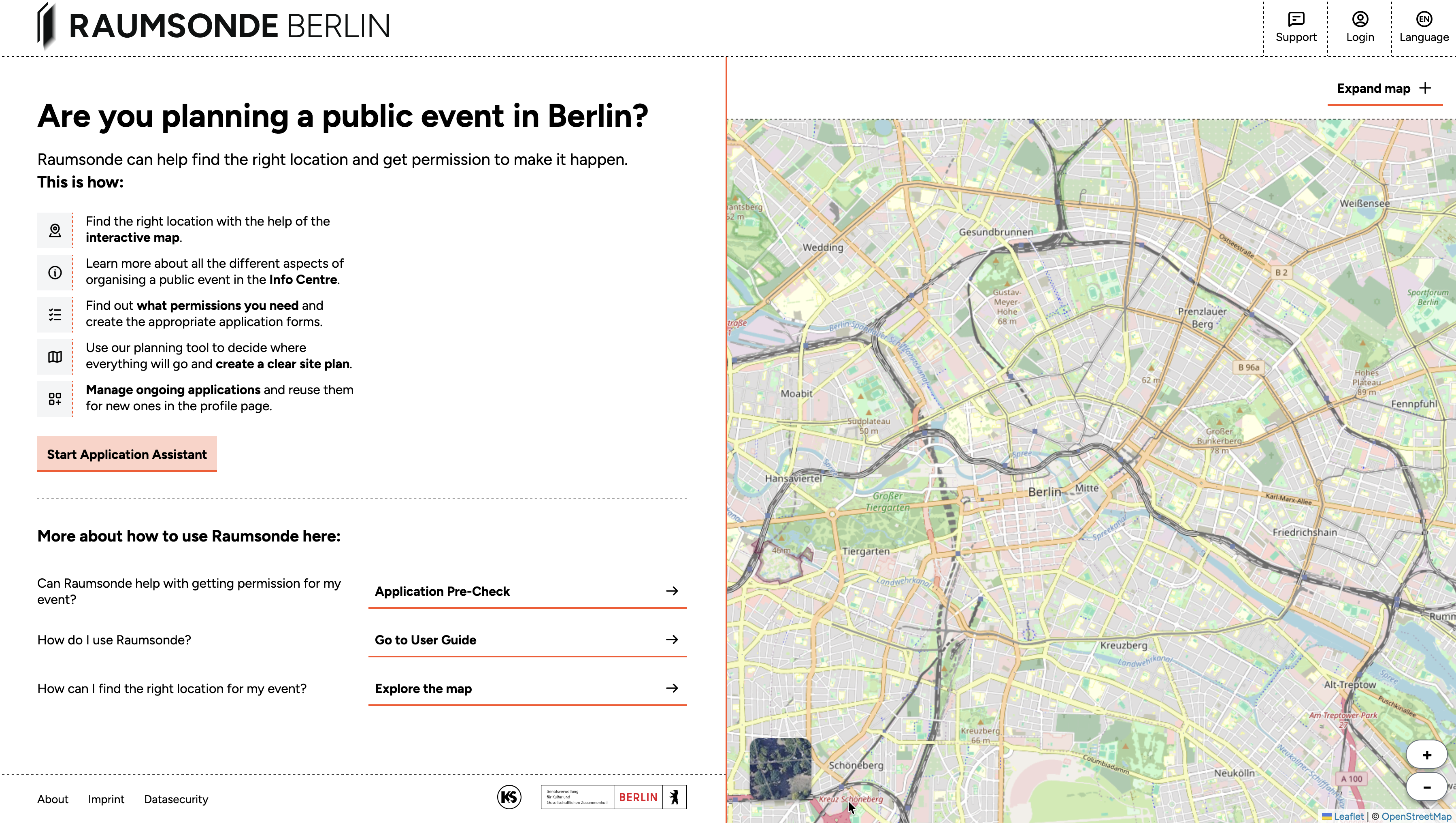
The information column (left) is the main text-based area of the site. At the top, a short introduction explains what Raumsonde can do, followed by a summary of the tool's key features. Below this, the Start Application Assistant button takes you directly into the application process.
Further down, three quick-access links help you find your way depending on what you need:
- Application Pre-Check if you want to find out whether Raumsonde can help with your event
- Support Center for an overview of how the tool works, and Explore the map to go straight to the Space Map.
The map column (right) displays an interactive map of Berlin. You can view the city as a standard street map or with a satellite image overlay and zoom in and out to explore different areas. Clicking Expand map in the upper right corner of the map hides the information column, giving you full-screen access to the Space Map and its complete feature set.
Header Navigation
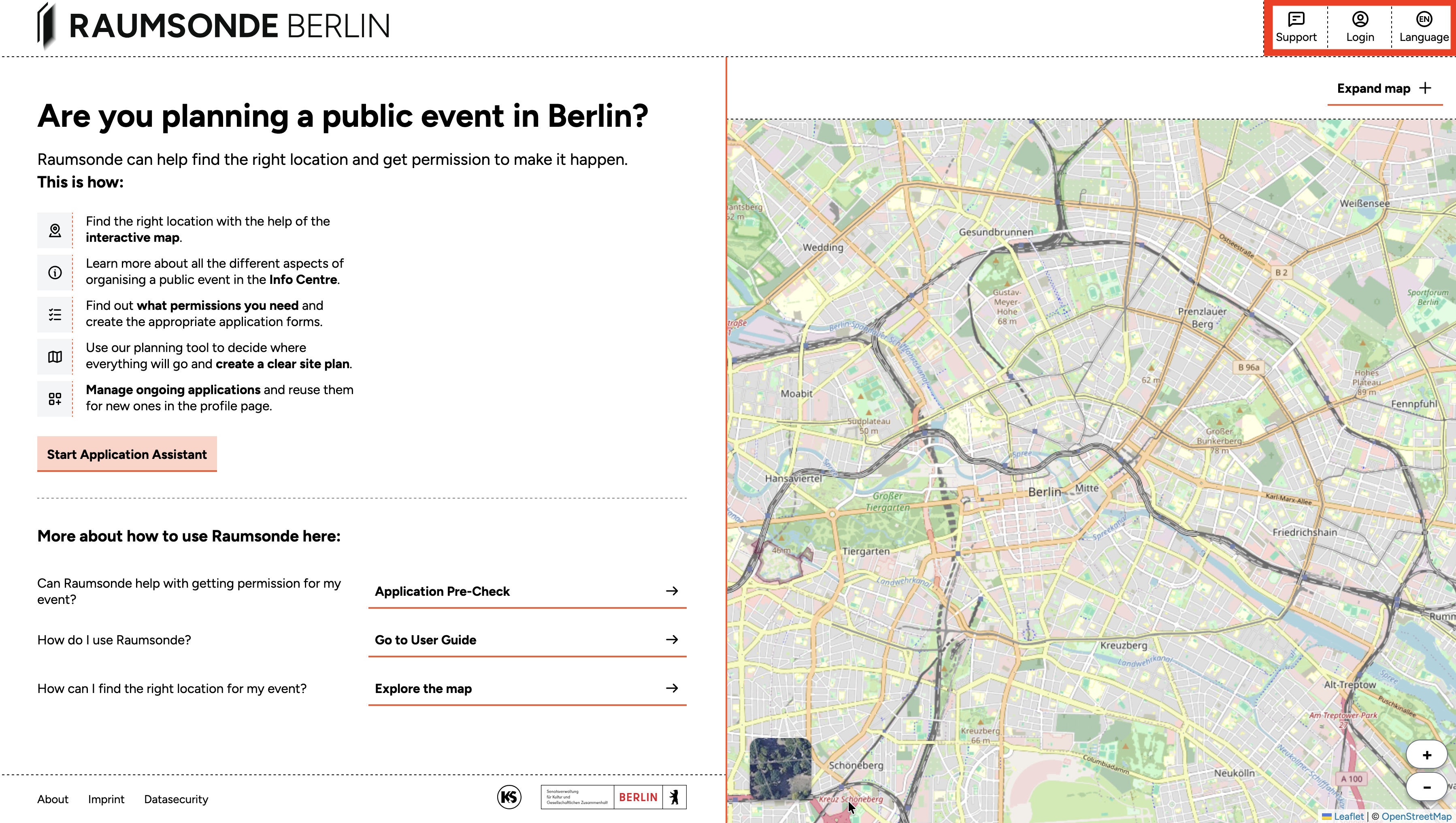
In the page header, three buttons on the right-hand side allow you to navigate between the main areas of Raumsonde:
-
Support opens the Support Center in a new browser tab. Here you can access the community forum to submit a bug report, a feature request, or a general question about using the tool. The Support Center also contains the Raumsonde documentation, Event Planning Guides, and other reference materials.
-
Login allows you to register with Raumsonde or log in to your user account to access the full feature set. Once logged in, this button changes to Profile, where you can manage your personal settings, saved locations, and events.
-
Language toggles the site language between German (DE) and English (EN).
Help and Contextual Guidance
Throughout the tool, small question mark icons appear next to individual elements.
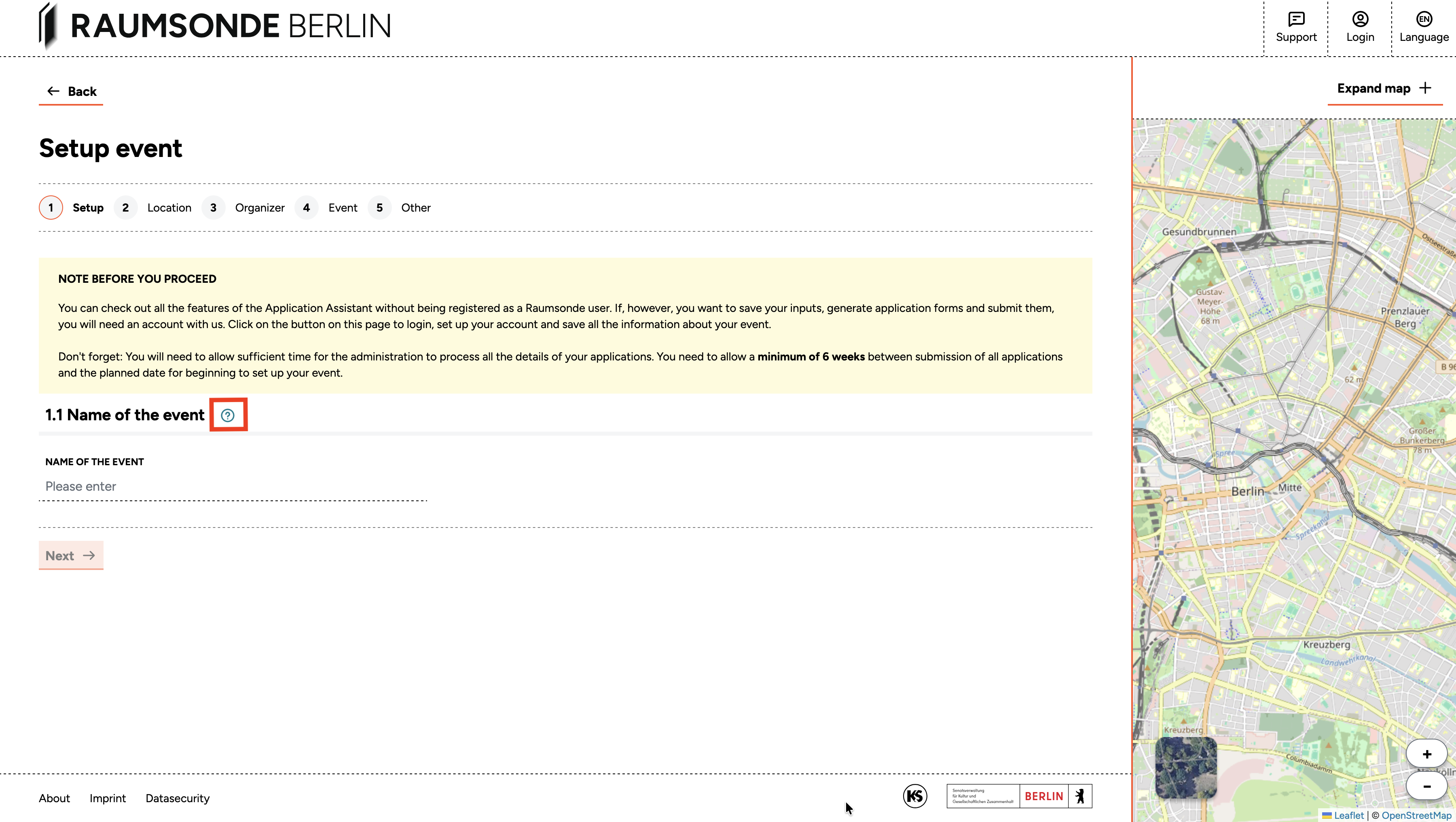
Clicking on one opens a short explanatory text with links to relevant sections of the Support Center or to external services and information. Click the X to close the window. If you need further help or want to report an issue, use the Support button in the page header to reach the Raumsonde team directly.
Creating an Account and Logging In
All services offered by Raumsonde are free of charge. Anyone can browse Raumsonde and explore the Space Map, information layers, the Site Planner, and the Application Assistant without creating an account. This lets you get a sense of whether Raumsonde is useful for your project before committing to registration. However, to save your inputs, bookmark favourite locations, and generate your applications as PDFs in the Application-Dashboard, you will need to register for a free user account.
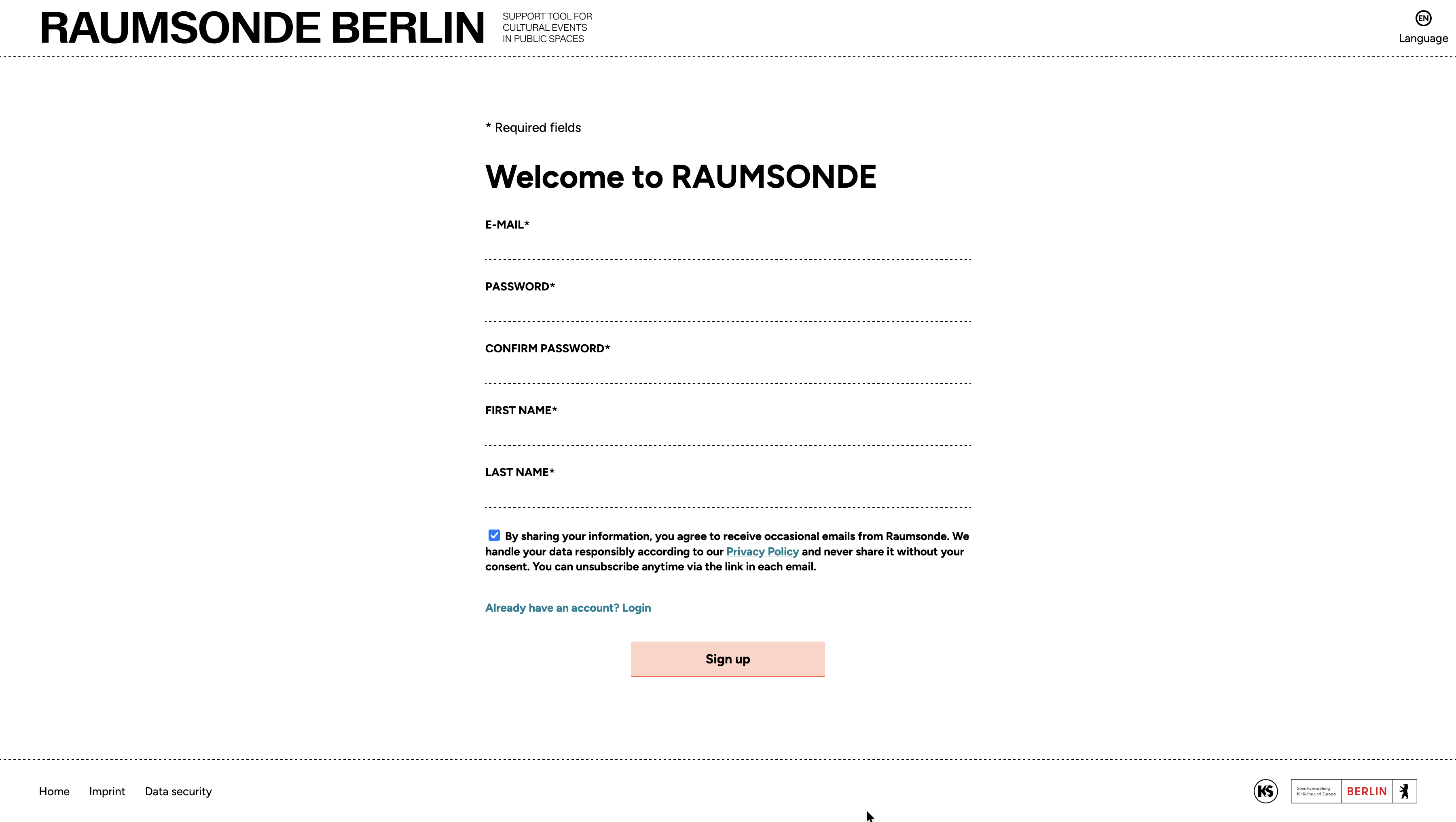
To create an account, click the Login button in the page header, then click Sign Up. Enter your personal details, an email address, and a secure password. You will receive a verification email – click the link to activate your account. If you do not receive the verification email within a few minutes, check your spam or junk folder – it may have been filtered automatically. If you still cannot find it, there may have been a typing error in the email address you entered during registration. In that case, try registering again and double-check the address before submitting.
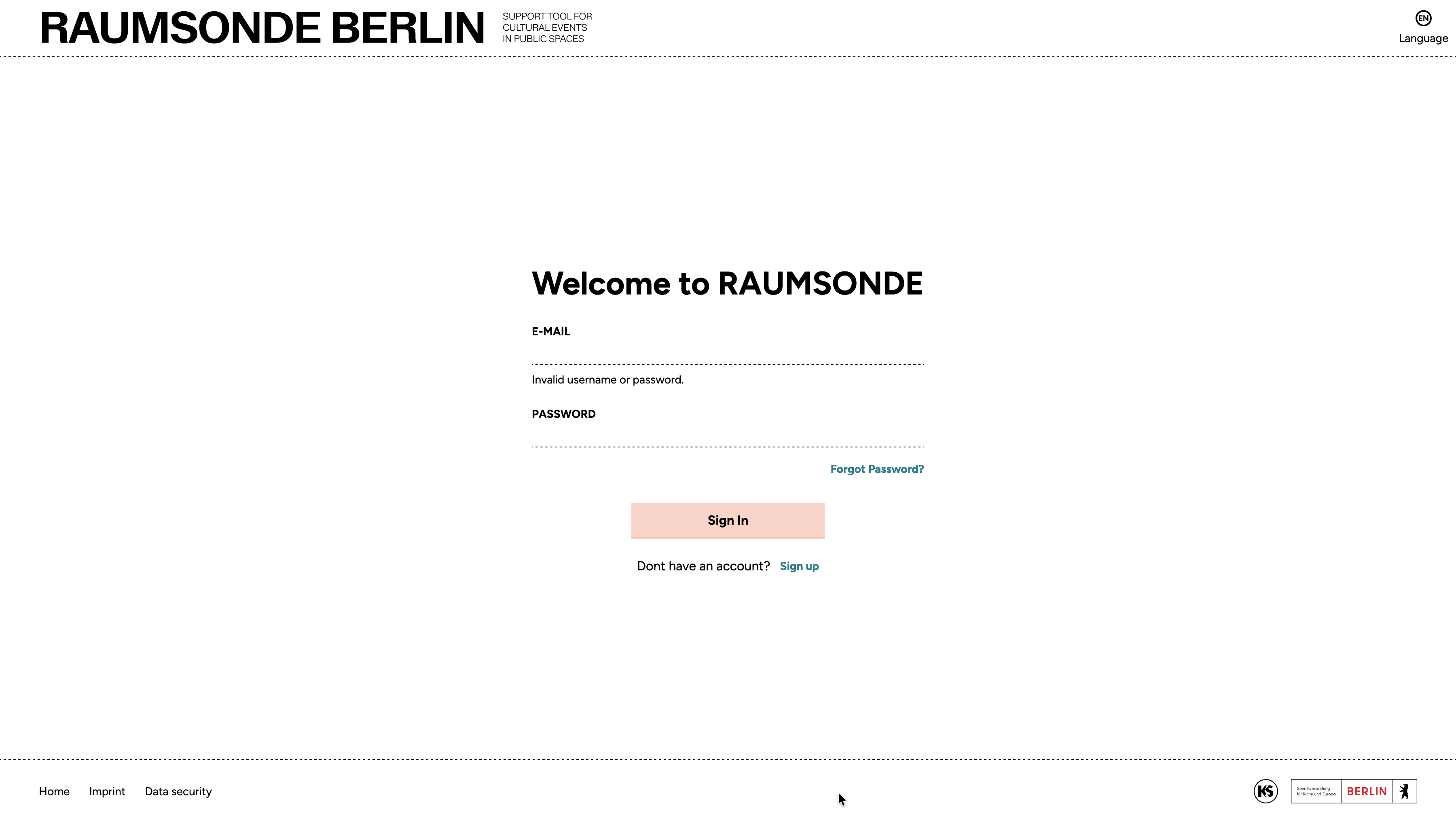
To log in, click the Login button, then enter the email address and password you used during registration. If you forget your password, click Forgot Password? to receive a reset link by email. Selecting Remember me saves your login details for future visits.